My sister got Minecraft yesterday and we're unable to join each others' LAN servers. We're on the same Wi-Fi router, neither of us have firewalls blocking Java and have updated to the most recent version, we're both on the same version of Minecraft, etc. The other troubleshooting articles/questions I've seen are aimed at Windows users-- both of us are on OS X El Capitan. Thank you in advance for your help!
15 Answers
In the launcher, go into the "Installations" tab. Choose a profile to patch. This method won't disrupt your game in any way, but if you're worried about breaking something, create a new installation.
Open the "More Options" panel, and paste the following text at the beginning of the "JVM Arguments" text field:
-Djava.net.preferIPv4Stack=true Mac is simply using iPv6 instead of iPv4 to try to connect to LAN worlds. The above text fixes that and forces it to prefer iPv4.

Description
Assuming you've done the normal troubleshooting (such as disabling the Firewall), you're experiencing bug with the networking protocol being used on MacOS (IPv6 versus IPv4), documented in detail here:
The fix is to tell Java to prefer IPv4. This is not trivial as it requires forcing a _JAVA_OPTION override at launch (or system wide).
Diagnose
To diagnose this as the cause, first launch Minecraft from terminal with the _JAVA_OPTIONS overridden.
- Close Minecraft
- Open 🔎 Spotlight (🔎 in upper right of Desktop)
- Search for "Terminal", open the app
Paste the following command in:
_JAVA_OPTIONS=-Djava.net.preferIPv4Stack=true /Applications/Attempt to connect to LAN server and see if it fixes the problem
Permanently Fix
Using Minecraft Launch Options: @TheOnlyMrCat provides a method here that does not involve editing any files by hand. Please try that before making changes to the Minecraft launcher.
Patching the launcher manually:
Use this method only if you have problems using @TheOnlyMrCat's solution.
This _JAVA_OPTIONS override can be provided in many locations but since launching from Terminal is not ideal, we need to use a technique that fixes when clicking on the icon. At time of posting, the Apple recommended method for providing overrides is inside the App bundle itself using something called LSEnvironment
- Optionally install a Text Editor such as Atom to edit XML files.
- Using Finder, go to Applications
- Locate (don't open) the Minecraft App
- Right click Minecraft, Show Package Contents
- Go into the
Contentsfolder and locateInfo.plist - Right click
Info.plist, Open With, Atom (or TextEditor) Near the bottom of the file, add the following in between the
<!-- ####</dict> </plist> <key>NSHighResolutionCapable</key> <string>YES</string> <!-- ######## ADD ONLY CONTENT BELOW THIS LINE ######## --> <key>LSEnvironment</key> <dict> <key>_JAVA_OPTIONS</key> <string>-Djava.net.preferIPv4Stack=true</string> </dict> <!-- ######## ADD ONLY CONTENT ABOVE THIS LINE ######## --> </dict> </plist>Unfortunately this does not take effect right away. This is due to the way Mac caches it's launch services. Force refresh of the launch services using the following command from Terminal:
cd /System/Library/Frameworks/ ./lsregister -kill -r -domain local -domain system -domain user(Note, the path of
lsregistermay be different, you can find it usingfind /System -name lsregister)Launch Minecraft from the icon and search for LAN games to confirm that the fix was properly applied.
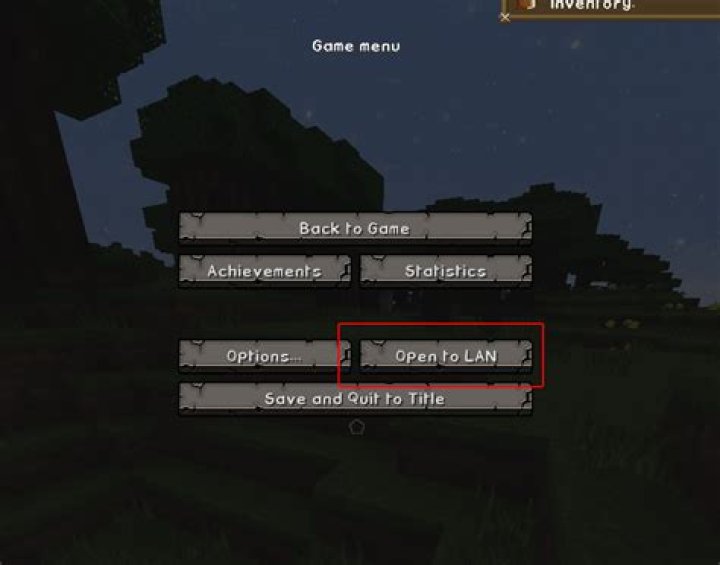
On the Mac you want to host the computer his Esc and then select Open to LAN
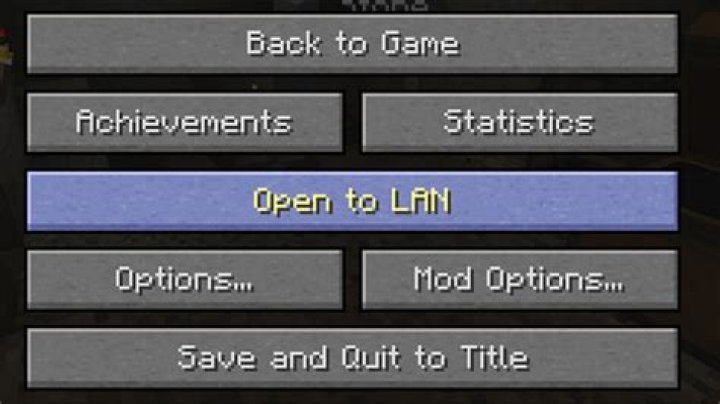
Then on the Mac you will be joining the game select Multiplayer from the main menu and you will see the game which you can then join.

If you've done these steps and are getting an error when trying to join the game please edit that error into your question.
2The solution is to find the IP Address of the host, and then use the use Direct Connect to connect to the server.
To find your IP address on Mac, go to the Apple Logo button on the top left of the menu bar > About This Mac, and in that window that pops up there will be a button with the text "System Report". Click on that and it will open the System Information, and then in the Network tab it will show you your IP address. When you 'Start LAN game' on the host computer, a port number will show up in the chat. That will also be important. To connect to your LAN game, type the IP address into Direct Connect on another computer, followed by the Port Number, in this order (include the colon):
IP ADRESS:PORT NUMBER
Have fun!
You both may need to download a program called LogMeIn Hamachi which is free and will allow you to connect.
Since you guys are using the same IP address, it won't let you connect. Without Hamachi, you can't connect from long distances; LAN stands for local area network.
With both of you using Hamachi, you can play. Its what I use. Look up instructions on how to use Hamachi, if you get confused.
2